



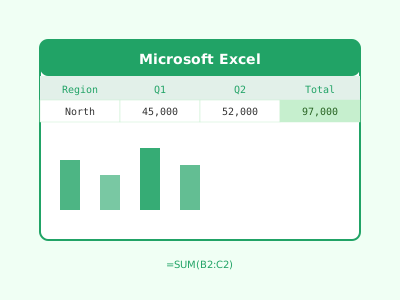
Why Excel Skills Still Matter
Despite the rise of specialized data tools like Python, R, and Tableau, Microsoft Excel remains indispensable in virtually every industry. Accountants, analysts, project managers, marketers, HR professionals, and entrepreneurs all rely on it daily. Excel proficiency consistently ranks among the top skills requested in job postings, and the difference between basic and advanced Excel knowledge can mean thousands of dollars in salary.
Whether you are managing budgets, analyzing sales data, building financial models, or automating repetitive tasks, Excel has the tools to do it — and learning it thoroughly is one of the highest-return investments in your professional development.
Understanding the Excel Interface
Before diving into formulas, familiarize yourself with Excel's layout:
- Ribbon: The toolbar at the top, organized into tabs (Home, Insert, Data, Formulas, etc.)
- Name Box: Displays the address of the currently selected cell (e.g., A1, B3)
- Formula Bar: Shows the content of the active cell — text, numbers, or formulas
- Worksheet tabs: Navigate between sheets at the bottom of the screen
- Columns (A, B, C…) and Rows (1, 2, 3…): Cells are addressed by their column-row intersection (e.g., C4)
Essential Formulas Every User Should Know
Arithmetic and Basic Functions
=SUM(A1:A10)         Sum a range of cells
=AVERAGE(B1:B10)     Average of a range
=MAX(C1:C10)         Largest value in a range
=MIN(C1:C10)         Smallest value
=COUNT(A1:A10)       Count cells with numbers
=COUNTA(A1:A10)      Count non-empty cells
=ROUND(3.14159, 2)   Round to 2 decimal places — result: 3.14
Text Functions
=LEN(A1)             Length of text in a cell
=LEFT(A1, 5)         First 5 characters
=RIGHT(A1, 3)        Last 3 characters
=MID(A1, 3, 4)       4 characters starting from position 3
=CONCATENATE(A1," ",B1)  Join text — or use =A1&" "&B1
=TRIM(A1)            Remove leading/trailing spaces
=UPPER(A1)           Convert to uppercase
=LOWER(A1)           Convert to lowercase
Logical Functions
=IF(A1>100,"High","Low")
=AND(A1>0, B1<100)
=OR(A1="Yes", B1="Yes")
=IFERROR(A1/B1, "Division Error")
=IFS(A1>=90,"A", A1>=80,"B", A1>=70,"C", TRUE,"F")
VLOOKUP and XLOOKUP
VLOOKUP is the classic lookup function that retrieves data from another table:
=VLOOKUP(lookup_value, table_array, col_index, [range_lookup])

Example:
=VLOOKUP(E2, A2:C100, 3, FALSE)
This searches for the value in E2 in the first column of the range A2:C100 and returns the value from the 3rd column. Use FALSE for an exact match.
XLOOKUP (available in Excel 365 and Excel 2021) is the modern replacement and is more flexible:
=XLOOKUP(lookup_value, lookup_array, return_array, [if_not_found])

Example:
=XLOOKUP(E2, A2:A100, C2:C100, "Not found")
XLOOKUP can search left or right, returns the actual column rather than an index number, and handles errors gracefully.
Conditional Formatting
Conditional formatting visually highlights data based on rules. Common uses:
- Highlight cells greater than a threshold in red
- Color-code a heatmap based on values
- Add data bars to show relative magnitude
- Identify duplicate values
- Highlight entire rows based on a column's value
To apply: Select your data range → Home tab → Conditional Formatting → Choose a rule type.
Pivot Tables
Pivot tables are one of Excel's most powerful features for summarizing large datasets without writing any formulas.
To create a pivot table:
- Click anywhere inside your data range.
- Go to Insert → PivotTable.
- Choose where to place it (new worksheet recommended).
- Drag fields into Rows, Columns, Values, and Filters.
For example, given a sales dataset with columns for Region, Product, and Revenue:
- Drag Region to Rows
- Drag Product to Columns
- Drag Revenue to Values (set to Sum)
Instantly you have a cross-tabulation showing total revenue by region and product.
Pivot Chart: Right-click a pivot table and insert a chart to create a dynamic visualization that updates when the pivot table changes.
Data Validation
Data validation restricts what users can enter in a cell, reducing errors:
- Allow only numbers within a range
- Create a dropdown list from a predefined set of values
- Require dates within a specific range
- Display custom error messages
Go to Data tab → Data Validation → Settings to configure.
Power Query: Import and Transform Data
Power Query (available in Excel 2016+) lets you connect to external data sources (CSV, databases, web pages), clean, and transform data before loading it into Excel. Key operations include:
- Remove duplicates
- Split columns by delimiter
- Unpivot columns (convert wide format to long format)
- Merge queries (like a JOIN in SQL)
- Add custom columns using M language
Power Query is far more maintainable than manual copy-paste workflows because transformations are recorded as steps that can be refreshed automatically.
Macros and VBA Basics
For truly repetitive tasks, Excel's built-in macro recorder generates VBA (Visual Basic for Applications) code automatically:
- Go to View → Macros → Record Macro.
- Perform the actions you want to automate.
- Stop recording.
The recorded macro can be run with a button click or keyboard shortcut. For more complex automation, edit the VBA code directly via the Developer tab → Visual Basic:
Sub FormatReport()
    ' Bold the header row
    Rows("1:1").Font.Bold = True
    ' AutoFit all columns
    Cells.EntireColumn.AutoFit
    ' Add a total row
    Dim lastRow As Long
    lastRow = Cells(Rows.Count, "A").End(xlUp).Row
    Cells(lastRow + 1, "A").Value = "Total"
    Cells(lastRow + 1, "B").Formula = "=SUM(B2:B" & lastRow & ")"
End Sub
Free Excel Learning Resources
Several high-quality free resources exist for learning Excel:
- Microsoft Learn: Official tutorials from Microsoft covering all skill levels
- GCFGlobal.org: Clear, beginner-friendly lessons with interactive exercises
- ExcelJet.net: Concise examples for hundreds of formulas and features
- Chandoo.org: Advanced tutorials, templates, and a supportive community
- YouTube channels: ExcelIsFun (Mike Girvin) has thousands of free video lessons
Building Your Excel Skills Progressively
A suggested learning path:
- Week 1–2: Interface, basic formulas (SUM, AVERAGE, IF), cell formatting
- Week 3–4: VLOOKUP/XLOOKUP, text functions, named ranges
- Week 5–6: Pivot tables, charts, conditional formatting
- Week 7–8: Data validation, Power Query, basic macros
- Month 3+: Advanced formulas (OFFSET, INDEX/MATCH), VBA, financial modeling
Conclusion
Excel mastery is built incrementally. Start with the formulas and features you need for your current work, and expand from there. The investment pays dividends immediately — tasks that once took hours can be completed in minutes, and your analyses become more accurate and repeatable.