


The Operational Overhead of Containerized Local Databases
For modern software engineers, maintaining local database instances for testing, feature development, and schema migrations is a daily requirement. Over the last decade, containerizing local services with Docker Desktop or Podman became the default industry recommendation.
However, relying on container virtualization for basic local database engines introduces significant operational and resource friction:
- Resource Starvation and Battery Depletion: Docker Desktop on macOS and Windows operates inside a dedicated Linux hypervisor virtual machine. Running PostgreSQL, MySQL, and Redis containers continuously consumes 4GB to 8GB of RAM and causes noticeable battery drain on developer laptops.
- Heavy, Electron-Based Client Bloat: Traditional multi-database GUI clients (such as DBeaver, DataGrip, or generic Electron wrappers) routinely demand 500MB to 1.5GB of disk space and hundreds of megabytes of baseline memory simply to render an active connection table.
- Filesystem I/O Virtualization Penalties: Bind mounts between the host OS and virtualized Docker containers introduce filesystem translation latency, causing database migrations and seed imports to run orders of magnitude slower than native bare-metal execution.
- Port Collisions and Version Switching Friction: Running multiple concurrent projects that depend on conflicting database major versions (e.g., PostgreSQL 14 vs. PostgreSQL 17, or MySQL 5.7 vs. MySQL 8.4) requires editing complex docker-compose.yml port mappings and container bridge networks.
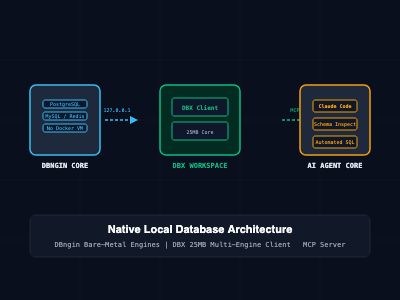
Pairing DBngin (a native database engine manager created by TablePlus) with DBX (a lightweight, open-source 25MB multi-database management client) eliminates container overhead, delivering bare-metal speed with one-click multi-version switching and integrated AI Model Context Protocol (MCP) tooling.
What Is the DBngin + DBX Local Stack?
This architecture decouples the database problem into two distinct, native layers: the Engine Runner and the Client Workspace.
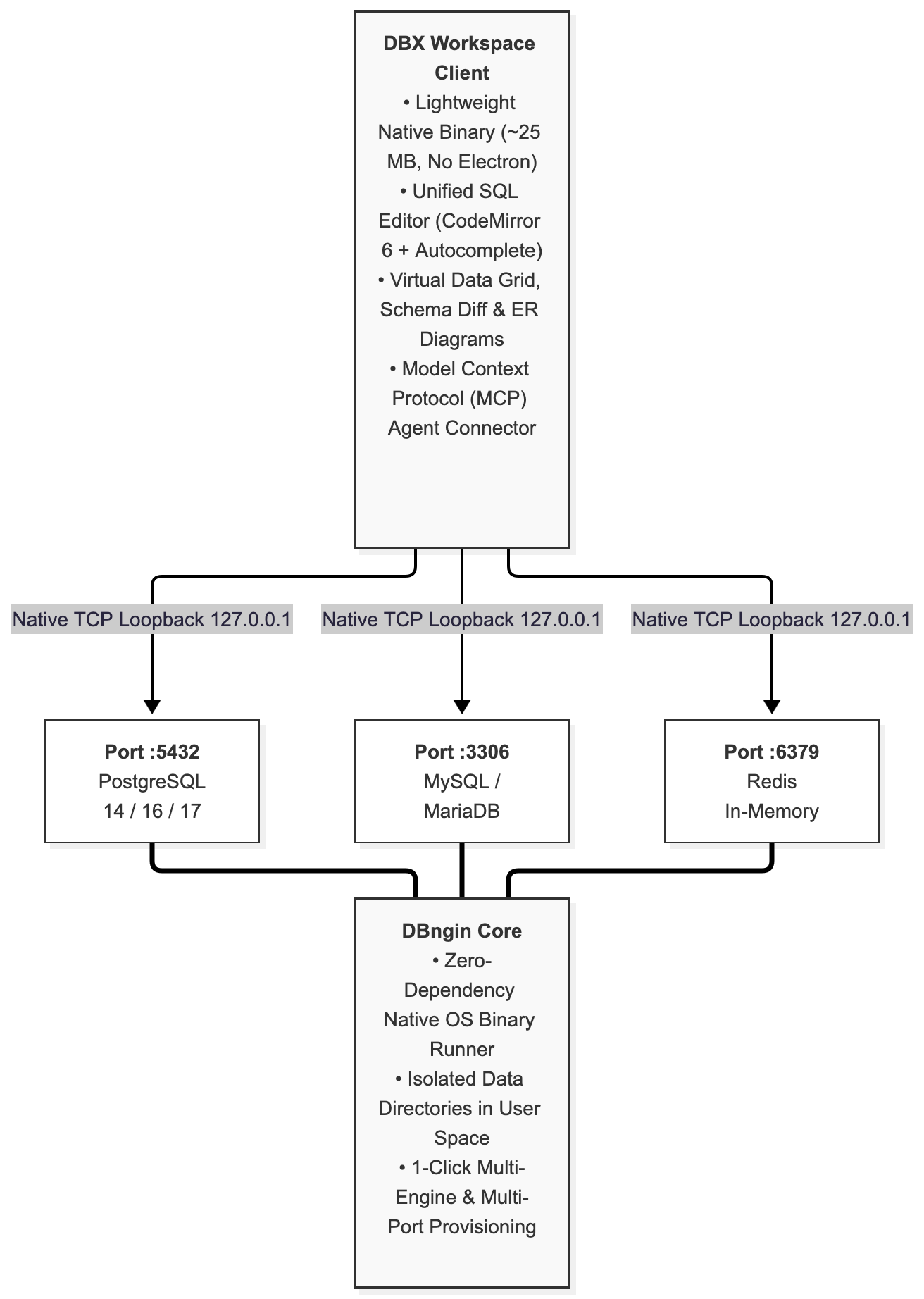
1. DBngin: The Bare-Metal Database Runner
Developed by the TablePlus team, DBngin is a free, native service runner for macOS and Windows. Instead of running virtual machines or container daemons, DBngin downloads official, pre-compiled database binaries and launches them directly as isolated host processes under your user account:
- Supported Engines: Multiple parallel versions of PostgreSQL, MySQL, MariaDB, and Redis.
- Zero Virtualization: Databases execute directly against the host kernel, saturating NVMe read/write speeds without virtual filesystem abstraction layers.
- Isolated Data Paths: Each configured database service retains its data files inside an isolated, unprivileged directory (~/Library/Application Support/com.tinyapp.DBngin/Databases on macOS).
- Multi-Version Coexistence: Run PostgreSQL 14 on port 5432 and PostgreSQL 17 on port 5433 simultaneously with a single toggle switch.
2. DBX: The 25MB Universal Database Client
DBX is an open-source, ultra-lightweight database management tool created by the t8y2 community. Unlike memory-heavy clients, DBX is compiled as a compact ~25MB application that requires zero bundled Chromium runtimes.
- Massive Engine Compatibility: Connects to over 100 database systems out of the box (PostgreSQL, MySQL, SQLite, DuckDB, ClickHouse, Redis, MongoDB, TiDB, Doris, and cloud data warehouses).
- AI & MCP Agent Integration: Features an integrated Model Context Protocol (MCP) server, allowing local AI developer agents (such as Claude Code, Cursor, or Cline) to safely inspect schemas and execute test queries directly through DBX.
- High-Throughput Virtualized Data Grid: Capable of streaming large query result sets with low RAM consumption, inline record editing, and visual EXPLAIN query execution plans.
- Flexible Distribution: Available as a native desktop binary, a terminal CLI tool, or a self-hosted Docker web service.
Setting Up the Native Local Stack
Step 1: Provisioning Native Engines with DBngin
- Download and install DBngin from the official portal (https://dbngin.com/).
- Launch DBngin and select New Server.
- Choose your database engine and target version (e.g., PostgreSQL 17 or MySQL 8.4).
- Assign a descriptive service name, local port (default: 5432 for Postgres, 3306 for MySQL, 6379 for Redis), and custom data storage path if desired.
- Click Create and toggle the service to Start.
The database engine is now running natively on 127.0.0.1 without launching Docker or consuming background virtualization cycles.
Step 2: Installing and Connecting with DBX
Install DBX using your preferred package manager:
# On macOS via Homebrew
brew install --cask dbx

# On Linux (x64 / ARM64 native package)
curl -fsSL https://dbxio.com/install.sh | bash

# Verify desktop binary presence
dbx --version
Open DBX and create a new connection matching your active DBngin service:
- Engine: Select PostgreSQL
- Host: 127.0.0.1 (or localhost)
- Port: 5432 (or the custom port assigned in DBngin)
- User: postgres (or default system user)
- Password: Leave blank (DBngin initializes default services with trust/local socket authentication)
- Database: postgres
Click Test Connection followed by Connect to open the schema explorer and SQL query editor.
Step 3: Integrating DBX MCP Server with Claude Code and AI Agents
One of DBX's unique capabilities is its built-in Model Context Protocol (MCP) server. By connecting DBX to your local agentic tooling (such as Claude Code), your AI assistant can inspect active schemas, analyze table structures, and test SQL queries without manual copy-pasting.
Add the DBX MCP server stanza to your ~/.claude.json or project-level configuration:
{
  "mcpServers": {
    "dbx-local-bridge": {
      "command": "dbx",
      "args": [
        "mcp",
        "--connection-id",
        "conn_local_postgres_dev"
      ]
    }
  }
}
Now, when executing prompts in Claude Code:
# Claude Code can directly query DBngin through DBX
claude "Inspect the users table schema on local postgres and write an optimized migration adding an indexed foreign key for team_id."
Scripting Bare-Metal Database Seeds and Backups
Because DBngin runs native binaries, standard CLI client utilities (psql, pg_dump, mysql, redis-cli) interact directly with local loopback ports with zero container execution layers.
The following Python script illustrates how a developer can programmatically automate schema seeding and performance benchmarking directly against a DBngin PostgreSQL instance:
#!/usr/bin/env python3
"""
seed_dbngin_benchmark.py - Fast local database seeder for DBngin + DBX
Executes direct raw socket connections without container virtualization layers.
"""
import time
import psycopg2
from psycopg2.extras import execute_values

DB_CONFIG = {
    "host": "127.0.0.1",
    "port": 5432,
    "user": "postgres",
    "password": "",
    "dbname": "postgres"
}

def setup_and_benchmark():
    print("[*] Connecting to native DBngin PostgreSQL instance...")
    conn = psycopg2.connect(**DB_CONFIG)
    conn.autocommit = True
    cursor = conn.cursor()

    # 1. Initialize benchmark schema
    cursor.execute("""
        CREATE TABLE IF NOT EXISTS test_orders (
            id SERIAL PRIMARY KEY,
            account_id VARCHAR(64) NOT NULL,
            amount NUMERIC(10, 2) NOT NULL,
            created_at TIMESTAMP WITH TIME ZONE DEFAULT NOW()
        );
        TRUNCATE TABLE test_orders;
    """)

    # 2. Generate 100,000 batch rows
    records = [
        (f"acc_{i % 500:04d}", round(10.5 + (i % 100), 2))
        for i in range(100000)
    ]

    print("[*] Executing batch ingestion on bare-metal storage...")
    start_time = time.perf_counter()

    query = "INSERT INTO test_orders (account_id, amount) VALUES %s"
    execute_values(cursor, query, records, page_size=5000)

    elapsed = time.perf_counter() - start_time
    print(f"[OK] Ingested 100,000 records in {elapsed:.3f} seconds ({100000 / elapsed:.0f} rows/sec).")

    cursor.close()
    conn.close()

if __name__ == "__main__":
    setup_and_benchmark()
Architectural Comparison: Native (DBngin + DBX) vs. Docker + DBeaver
| Dimension | Native Stack (DBngin + DBX) | Virtualized Stack (Docker + DBeaver) |
| Memory Footprint | ~150MB total (DB process + DBX) | 2GB–6GB+ (Hypervisor + JVM + Electron) |
| App Bundle Size | ~25MB (DBX) + small DB binaries | 1.5GB+ (Docker Engine + DBeaver) |
| Startup Velocity | Sub-second (< 500ms per engine) | 15–45 seconds (VM boot & container spin-up) |
| Filesystem I/O | Bare-metal NVMe write speeds | Bound to container virtualized bind mounts |
| AI / MCP Integration | Native MCP server built-in | Requires custom external proxies |
| Multi-Version Switching | 1-Click GUI toggle per port | Requires rewriting Compose files |
| Battery Life Impact | Negligible on macOS & Windows | High continuous drain (Linux hypervisor) |
SRE and Developer Best Practices
- Isolate Development Ports by Project: Avoid running all development databases on port 5432. Assign distinct, predictable ports for different client projects (e.g., Project A on Postgres 5432, Project B on Postgres 5433).
- Store Schema Dumps in Version Control: Because DBngin stores database state in user directories, never treat local data as permanent. Maintain strict Git-versioned migration files (Flyway, Liquibase, Prisma, or Laravel migrations) to recreate state on demand.
- Use DBX Schema Diff for Peer Review: Before pushing schema changes to staging, use DBX's built-in Schema Diff to compare your local DBngin database against production to catch missing indexes or uncommitted column type mismatches.
- Automate Backups via Local Cron: Write simple shell scripts wrapping pg_dump or mysqldump against DBngin ports to backup testing datasets before running destructive test suites:
# Automated snapshot of local DBngin database
pg_dump -h 127.0.0.1 -p 5432 -U postgres -d my_dev_db > ~/Backups/my_dev_db_$(date +%Y%m%d).sql
Getting Started
To launch your high-efficiency local database environment:
- Install DBngin: Download from https://dbngin.com/, install, and launch your desired PostgreSQL, MySQL, or Redis engine.
- Install DBX: Download the ~25MB client from https://dbxio.com/en or install via Homebrew (brew install --cask dbx).
- Connect and Code: Point DBX to 127.0.0.1, inspect your tables with virtualized scrolling, and optionally connect the DBX MCP server to your AI coding agents.
By replacing bulky virtualized containers with native, lightweight tools like DBngin and DBX, developers regain gigabytes of memory, maximize laptop battery endurance, and achieve instantaneous database execution.